GAGEtrak Newsletter - 1-800-777-7020 https://gagetrak.com

YOU'VE CHOSEN GAGETRAK.

SMART MOVE! NOW WHAT?

Here's how to keep your team on track during implementation and beyond

You knew it was time for a change. Maybe spreadsheets had become difficult to manage. Maybe your current calibration software no longer supported the way your team works. Or perhaps you wanted to upgrade to the latest version of GAGEtrak and knew there would be new features, workflows and processes for your team to learn.


Whatever brought you to that decision, choosing GAGEtrak was the easy part. It’s taking the next step that can feel a little overwhelming...

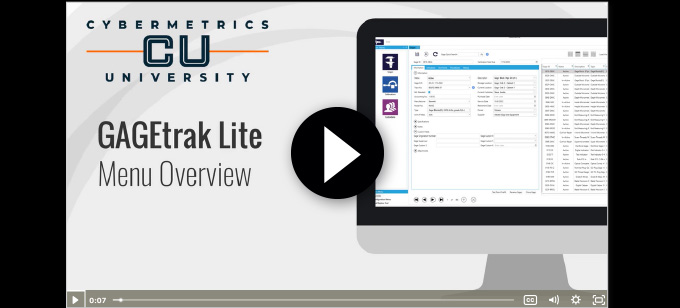
GAGEtrak Lite Self-paced Training

LEARN. PAUSE. RESUME. REPEAT.

Self-paced GAGEtrak Lite training fits perfectly into your busy schedule. You can move through the system step by step at a pace that works for you, building confidence as you go. With practical, real-world examples, proven best practices and a certificate upon completion, you’ll gain the skills you need to work smarter, avoid costly missteps and see meaningful results sooner.


DO YOU PREFER LIVE INTERACTION?

Register for an upcoming web training suite:


GAGEtrak Lite: August 17-19

GAGEtrak Pro: August 17-21

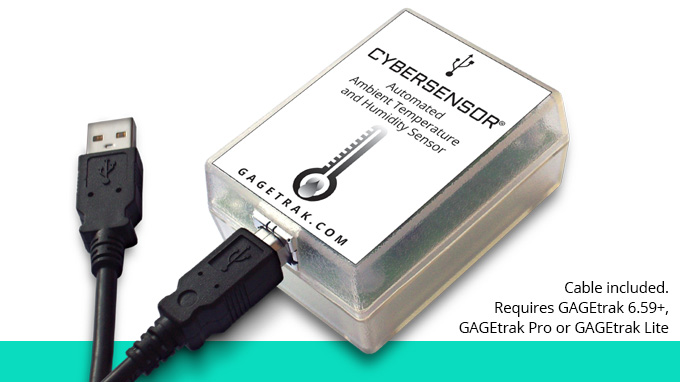
Did you know that you can use a CyberSensor to capture environmental conditions during calibration?

CyberSensor monitors the temperature and relative humidity of your calibration environment and when you pass a calibration, the CyberSensor data populates the Temperature and Humidity fields in the GAGEtrak calibration record, making your calibration documentation even more thorough. Here's how to set up a CyberSensor in GAGEtrak:

  1. Connect your CyberSensor via the USB port on your PC.
    
  2. Make sure you can see it in Devices and Printers in your control panel. Depending on your OS, it may appear as an unspecified device, but it should say USB Temp/Humidity Sensor.
    
  3. Open GAGEtrak and navigate to the Configuration Menu -> Settings –> Calibration tab; the CyberSensor Settings section is on the right side.
    
  4. Click the (+) icon to create a new record and enter the necessary information. Hover your mouse over the ( i ) icon for more instruction, if needed. If you do not need to enter correction values, leave those set to zero. You can repeat this step for as many CyberSensors as you need.
    
  5. Save the record.

It's that simple! Any questions? Contact us at

1-800-777-7020 or sales@cybermetrics.com.

CyberSensor - temperature and humidity monitoring

CHECK OUT THIS CONVERSATION ON OUR COMMUNITY FORUM:

Click to read the forum conversation!

Is there anything we can do for you?

Let's chat!


1-800-777-7020

sales@cybermetrics.com

 
Facebook    X    LinkedIn    YouTube    Email